
2 March 2023
Are you tired of losing track of your belongings? Do you wish there was an easier way to label everything? Look no further than the LetraTag LT200B!
Posted in News
Are you tired of losing track of your belongings? Do you wish there was an easier way to label everything? Look no further than the LetraTag LT200B!
Label printers are a better choice than laser sheet labels due to their greater customization options, efficiency, quality, cost-effectiveness, and versatility.
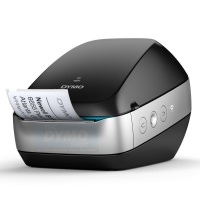
Mobile label printers offer many advantages over stationary printers, including portability, convenience, efficiency, versatility, and cost-effectiveness. They are designed to be lightweight, fast, and flexible, allowing you to print labels on-the-go whenever and wherever you need them. With a mobile label printer, such as the Dymo LT-200B, you can save time, increase productivity, and customize labels to suit your specific needs. Overall, a mobile label printer is an excellent investment for anyone looking for a more flexible and versatile labeling solution.
The Dymo LetraTag 200B is a portable, and sustainable labeling solution that is easy to use and perfect for both home and on-the-go use. It features an intuitive app, auto-off function, Bluetooth connectivity, and FSC® certified paper tape.
What to do if your label isn't listed...
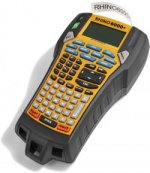
After discontinuing the Rhino 6000 in 2017, Dymo is now re-releasing the improved printer as the "6000+"...
Perform a factory reset on a LabelManager 280.
Here's how to perform a factory reset for the Dymo LabelManager 210D labeller.
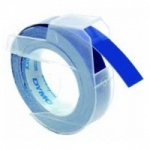
Can I still get embossing tapes for my Dymo 1855 [read more]
The LabelManager 160 / 210D / 280 labeller can give a "label Jam!" error, which can be caused by a motor stall or stuck cassette label tape [read more]
.jpg)
.jpg)
(New - Wireless Label Printer)
.jpg)